
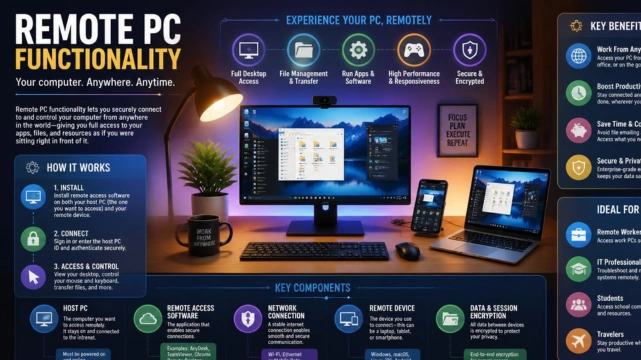
A remote PC lets you view and control a computer while you’re somewhere else, using another computer, phone, or tablet. You can open files, run installed programs, provide technical support, and work with the desktop almost as if you were sitting in front of it. The right setup depends on your operating system, security needs, budget, and whether the connection is for personal or business use.
| Key point | What to know |
| Main purpose | Access and control another computer over a network or the internet. |
| Common uses | Remote work, IT support, file access, specialized software, server administration |
| Devices | PCs, Macs, phones, tablets, Chromebooks, and Linux devices, depending on the service |
| Main options | Windows Remote Desktop, Chrome Remote Desktop, RemotePC, TeamViewer, Splashtop, and similar tools |
| Security priorities | Strong passwords, encryption, multi-factor authentication, updates, and controlled user access |
| Internet requirement | Usually required when connecting from outside the computer’s local network |
| Host requirement | The computer normally needs to be powered on and reachable unless a supported wake feature is configured. |
Direct answer: Remote access software connects a local device, called the client, to another computer, called the host. After authentication, the software sends the host’s screen to you and returns your keyboard and mouse input, allowing you to use applications and files from another location.
Key Takeaways
- Remote access can be useful for working from home, traveling, managing office systems, or helping another user.
- Windows includes a built-in option, but Windows Home cannot host incoming Microsoft Remote Desktop connections.
- Chrome Remote Desktop supports remote access to Windows, Mac, and Linux computers and uses encrypted remote sessions.
- Third-party services can add features such as file transfer, multi-monitor support, remote printing, browser access, and unattended connections.
- Security depends on both the software and your configuration, so account protection and device updates matter.
What Remote Computer Access Actually Means
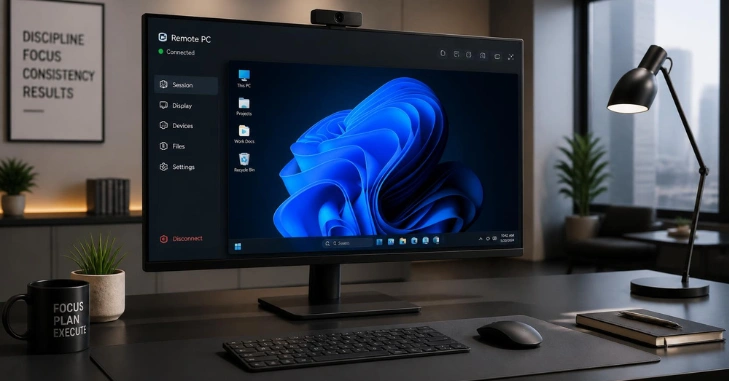
Remote PC computer access creates a connection between the device in front of you and a computer in another location. The distant machine continues running its own operating system, applications, storage, and processing tasks. Your local device becomes the interface you use to see and control what happens on that machine.
This setup differs from simply syncing files through cloud storage. Cloud storage gives you access to selected documents, while remote desktop technology can expose the complete desktop environment and its installed programs. Microsoft describes the concept as connecting to a computer elsewhere and controlling it much as you would in person.
That difference matters for employees who depend on software installed only on an office workstation. It can also help businesses keep important information on managed machines rather than copying files across several personal devices. Marketeral’s coverage of digital record management and secure information access provides related guidance for businesses managing digital information.
How Does a Remote PC Work?
Most systems use a host-and-client model. The host is the computer you want to control, while the client is the laptop, desktop, phone, or tablet you have with you. Both sides communicate through a local network or internet connection after the service verifies that you have permission.
The software continuously transmits visual changes from the host screen to the client. It sends your mouse clicks, keyboard commands, and other supported input back in the opposite direction. Connection quality therefore depends partly on network speed, latency, display settings, and what you are doing on the host.
A typical connection follows four stages:
- Prepare the host. Enable the operating system’s remote-access feature or install the chosen remote-access application.
- Authorize your account. Create credentials, a PIN, or another approved authentication method.
- Connect from the client. Open the matching app or web interface and select the host computer.
- End the session securely. Disconnect when finished and remove temporary access when it is no longer required.
Google, for example, lets users configure Chrome Remote Desktop on Windows, macOS, and Linux computers. A connected device can then access the host after the user supplies the required PIN or temporary support credentials. Google states that its remote desktop sessions are encrypted.
Windows Remote Desktop vs. Chrome Remote Desktop vs. RemotePC
Choosing a tool is easier when you first decide whether you need simple personal access or centralized business features. The built-in Windows option can work well in suitable Windows environments, while browser-oriented and commercial services often support a wider mix of devices. The table below summarizes the main differences.
| Option | Good fit for | Main advantage | Important limitation |
| Windows Remote Desktop | Windows Pro, Enterprise, Education, and managed business systems | Built into supported Windows host editions | Windows Home cannot act as the host. |
| Chrome Remote Desktop | Personal access and straightforward cross-platform use | Simple web-based setup across Windows, Mac, and Linux | Fewer advanced IT administration features |
| RemotePC | Individuals, teams, and organizations needing additional management features | File transfer, browser access, remote printing, multi-monitor tools, and business plans | Advanced use generally requires a paid plan. |
Microsoft currently says Windows Professional, Enterprise, Education, and Windows Server editions can host incoming Remote Desktop connections. Windows Home can still be used as a client, but it cannot host Microsoft’s built-in Remote Desktop service.
RemotePC is also the name of a commercial service, which can cause confusion around this keyword. Its current service supports Windows, Mac, and Linux access while offering features such as file transfer, remote printing, web access, and session recording on eligible plans. Current plans and promotional pricing can change, so check RemotePC’s official pricing page before making a buying decision.
How to Set Up Remote Access Safely
Start by deciding exactly which machine and user account should accept connections. Avoid enabling access for every user simply because it is convenient. Limiting permissions reduces the damage that a stolen password or compromised account could cause.
Next, protect the account with a strong and unique password. Enable multi-factor authentication whenever the software supports it, especially for unattended access to a business device. Keep the host operating system, remote-access client, browser, and security software updated.
Microsoft advises enabling its Remote Desktop feature only on trusted networks and using strong passwords on accounts allowed to connect. For connections from outside the host’s network, Microsoft documents options that include a VPN or network configuration designed for outside access.
For business environments, access should also match job responsibilities. Review active users when employees change roles or leave the company, and remove connections that are no longer required. Organizations already moving workloads online may also find Marketeral’s guide to choosing a Google Cloud managed service provider useful when assessing broader cloud security and administration needs.
A Practical Setup Checklist
You do not need an advanced IT environment for basic personal access, but preparation prevents many common connection problems. Complete the setup while you still have physical access to the host machine. Test the connection from another network before depending on it during a trip or workday.
Use this checklist before relying on the connection:
- Confirm that the host computer supports your chosen software.
- Install all operating system and security updates.
- Enable only the accounts that genuinely need remote access.
- Turn on multi-factor authentication when available.
- Check sleep and power settings so the machine remains reachable.
- Test audio, printing, file transfer, or multiple displays if those features matter.
- Save recovery information for the remote-access account somewhere secure.
- Create an alternate way to reach important files if the host becomes unavailable.
For Windows users choosing Microsoft’s built-in service, check the edition before starting. Microsoft currently requires a supported Pro-level or enterprise-oriented Windows edition for the machine receiving the incoming connection.
Common Performance and Connection Problems
A remote session can feel slow even when both computers are powerful. High network latency, weak Wi-Fi, limited upload bandwidth at the host, and high display resolution can all affect responsiveness. Video editing, gaming, detailed 3D work, and other visually intensive tasks are more demanding than opening documents or checking email.
If a connection fails, first confirm that the host is powered on and connected to the internet. Then check account permissions, firewall rules, the remote-access application, and whether the host has gone into a sleep state. Google also notes that antivirus or managed network policies can sometimes interfere with Chrome Remote Desktop connections.
Businesses should test remote-working systems before employees depend on them. That means checking both technical reliability and the daily workflow around the connection. Marketeral’s workplace productivity tips cover additional ways to organize technology, communication, and work habits around productive routines.
Where Remote Access Is Most Useful
Remote access is particularly useful when the computer you need contains software or information that cannot easily move with you. An employee traveling within the United States might need an accounting program installed on an office workstation, while an IT technician may need to diagnose a user’s machine without visiting the site. Home users may simply want a document stored on another computer.
It can also support flexible staffing and distributed teams. People can keep using familiar systems while working away from a primary office, provided the organization has suitable access controls. For a broader look at distributed support and task management, see Marketeral’s discussion of virtual assistant services and flexible work.
Remote access does not eliminate the need for backups, collaboration software, or cloud storage. It solves a different problem by giving you control of the original computer and the software running on it. A well-designed work setup may use several of these tools together rather than expecting one service to handle every requirement.
How to Choose the Right Remote Access Option
Start with your devices and use case instead of choosing the service with the longest feature list. Personal users often need simple connections to one or two computers, while businesses may care about user management, audit records, deployment controls, support sessions, and multiple machines. Paying for features you will never use adds complexity without improving the connection.
Consider these decision points:
- Choose Windows Remote Desktop when the host runs a supported Windows edition and you are comfortable managing Windows access securely.
- Consider Chrome Remote Desktop when you want straightforward access across common desktop platforms without extensive administration features.
- Consider a paid remote-access platform when your organization needs centralized user controls, remote support, multiple computers, reporting, or advanced productivity tools.
- Prioritize security controls if the host stores confidential business, financial, customer, or regulated information.
No single option is right for every US household or business. Compare platform support, security, performance, management tools, support availability, and the full renewal cost before committing. Run a trial with your real network and applications when possible.
Choose Access Around the Way You Work
Remote computer access can give you the flexibility to reach familiar files and applications without carrying the original machine everywhere. The best setup is the one that combines suitable device support, reliable performance, and security controls you can manage consistently. Start with a limited test connection, confirm that your important applications work correctly, and expand access only when you know the setup meets your needs.
Conclusion
A remote PC can make it much easier to access your files, applications, and desktop from another location without carrying your main computer everywhere. Whether you need remote access for working from home, traveling, technical support, file access, or managing another computer, the right setup can provide a practical way to control a host computer from a laptop, phone, tablet, or another device.
Choosing the right remote-access solution depends on your operating system, devices, budget, technical requirements, and the level of management you need. Windows Remote Desktop can be suitable for supported Windows editions, while Chrome Remote Desktop offers straightforward access across Windows, Mac, and Linux. Paid platforms such as RemotePC can provide additional features for users and organizations that need file transfers, remote printing, browser access, multi-monitor support, or centralized management.
Frequently Asked Questions
Is a remote PC safe to use?
Yes, it can be safe when the connection uses reputable software and appropriate security settings. Use unique passwords, multi-factor authentication, current software, limited permissions, and encrypted connections whenever possible. Avoid giving permanent unattended access to people or accounts that do not need it.
Can Windows Home host Microsoft Remote Desktop?
No, Microsoft says Windows Home editions cannot act as hosts for incoming connections through its built-in Remote Desktop feature. Windows Home can still be the client device that connects to a computer running a supported host edition. Windows Professional, Enterprise, Education, and Windows Server editions are among Microsoft’s supported host options.
Can I access my computer from a phone?
Yes, many remote-access services provide mobile clients for phones and tablets. Google says Chrome Remote Desktop can be used from a computer or mobile device to reach files and applications on another computer. Your experience will still depend on screen size, internet quality, and whether the desktop application works comfortably with touch controls.
Does the host computer need to stay on?
In most everyday setups, the host must be powered on, connected to the network, and available to the remote-access service. Sleep or hibernation can make a computer unreachable unless the hardware and service support a wake feature such as Wake-on-LAN. Check and test power settings before leaving a computer unattended for an extended period.


