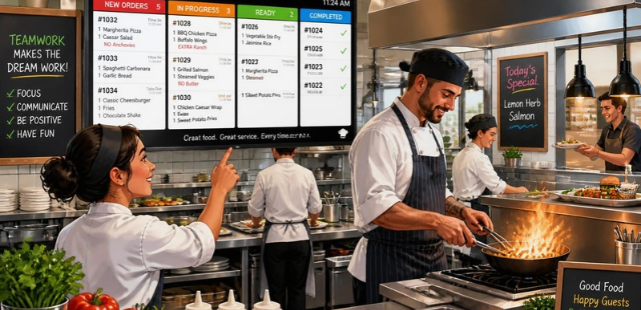
Restaurant kitchens depend on fast, accurate communication during every service. A kitchen display system replaces paper tickets with digital order screens for cooks and expediters. It can organize incoming orders, route items, show modifiers, and track preparation times.
For U.S. restaurants, these tools can connect the front and back of house more closely. Orders can move from the POS directly to the correct preparation station. Managers can also gain clearer information about ticket times and recurring bottlenecks.
Quick answer: A KDS is restaurant software that shows incoming orders on kitchen screens instead of printed tickets. It can route items to stations, display modifiers, track preparation progress, and help staff coordinate orders from dine-in, takeout, delivery, and online channels.
| Key question | Practical answer |
|---|---|
| What does a KDS do? | Displays and manages restaurant orders digitally |
| What can it replace? | Paper kitchen tickets and some ticket printers |
| Where do orders come from? | POS, online ordering, kiosks, and supported delivery channels |
| Common features | Station routing, timers, modifiers, alerts, order status, and reporting |
| Typical hardware | Tablets, Android devices, or commercial restaurant displays |
| Main buying issue | Compatibility with the restaurant’s existing POS |
| Common pricing model | Monthly software fees, often charged per screen or location |
| Best fit | Restaurants where order volume or complexity makes paper tickets difficult to manage |
What Is a Kitchen Display System?
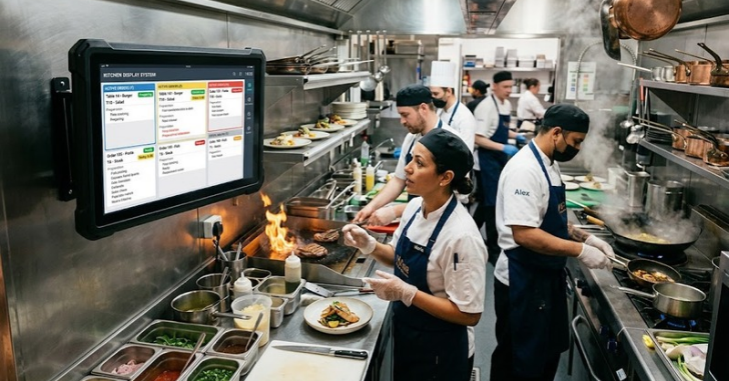
A kitchen display system is a digital order-management tool used inside a restaurant’s back-of-house. It receives order information and presents it on screens positioned near preparation or expediting stations. Staff can then follow tickets without relying entirely on printed slips.
A typical KDS connects with the restaurant’s point-of-sale platform. When an employee enters an order, relevant items can appear automatically at designated stations. Online and delivery orders may also enter the same workflow when supported by the restaurant’s software.
This differs from a POS because the two systems serve different jobs. A POS captures orders, manages transactions, and handles front-of-house activity. The kitchen screen focuses on production after the order has been submitted.
Restaurants considering both technologies can also review Marketeral’s guide to mobile POS systems for U.S. businesses. That guide explains payment hardware, software costs, integrations, and mobile checkout options. Understanding both sides helps owners evaluate the entire order process.
How a Digital Kitchen Order Workflow Works
The process usually begins when a guest or employee submits an order. That order may originate from a counter terminal, handheld device, website, kiosk, or connected delivery service. The restaurant software then sends the required information to the kitchen.
Routing rules decide which station receives each item. Burgers may appear at the grill while fries appear at another station. An expeditor screen can combine progress information before the completed order leaves the kitchen.
Cooks can often mark individual items or whole tickets as completed. The screen updates instead of requiring employees to move paper tickets manually. Some systems also allow completed tickets to be recalled when an item needs correction.
Modern platforms may combine several ordering channels on one interface. Toast says its KDS can handle dine-in, takeout, delivery, and curbside orders together. Square also supports routing orders to preparation and expeditor stations.
Paper Tickets vs. Kitchen Screens
Paper printers remain familiar and may work well in simple kitchens. Their main limitation is that printed information cannot update dynamically after the ticket appears. Staff must also sort, read, store, or discard physical tickets during service.
Digital screens can show changing order status and preparation timers. They can also highlight modifiers without requiring employees to interpret handwritten notes. This makes the workflow easier to monitor when several stations share responsibility for an order.
| Factor | Paper tickets | Digital kitchen screens |
|---|---|---|
| Order updates | Usually requires another printed ticket | Can update on screen |
| Station routing | Depends on printer setup | Can use software routing |
| Ticket timers | Manual | Common digital feature |
| Physical clutter | Creates paper | Mostly paperless |
| Performance data | Limited | Often available |
| Modifier visibility | Depends on print layout | Can be highlighted |
| Equipment | Printer and paper | Screen, device, and software |
Paper does have advantages in certain settings. A printer can provide a simple backup when network or device problems occur. Some operators therefore keep printers for selected stations even after adding screens.
7 Benefits Restaurants May Gain From a KDS
1. Faster Order Routing
Digital routing removes several manual handoffs from the order process. Items can reach the correct preparation station after the order enters the POS. Staff spend less time sorting tickets during busy periods.
Speed still depends on kitchen layout and staffing. Software cannot fix an understaffed line or inefficient menu by itself. It can remove communication steps that create avoidable delays.
2. Clearer Modifiers and Special Instructions
Special requests become harder to manage when tickets are crowded or damaged. Digital layouts can make modifiers easier to identify during preparation. Some systems also emphasize allergy information and important preparation notes.
Toast, for example, lists clear item labels and modifier display among its current KDS capabilities. Its system can highlight allergens and special preparation instructions. Staff still need strong allergen procedures beyond any software tool.
3. Better Coordination Between Stations
A complex order may involve grill, fry, salad, bar, and expo stations. A connected system gives those stations a shared view of active work. That can reduce confusion about which dishes belong together.
Routing rules can also prevent every screen from displaying every item. Each station sees the information relevant to its assigned work. This can make busy displays easier for staff to scan.
4. Easier Management of Multiple Order Channels
Restaurants increasingly receive orders from more than one source. Dine-in, pickup, first-party online ordering, and delivery can create separate queues. Manually combining those queues increases the chance of missed tickets.
A compatible KDS can consolidate supported channels before orders reach the line. TouchBistro says its system can display POS and online orders together or separate them by order type. Operators should confirm each required channel before choosing a provider.
5. Real-Time Ticket Tracking
Timers help employees identify orders that have spent too long in preparation. Managers can also see where production is slowing during service. This creates a more measurable workflow than a rail filled with paper tickets.
The information can support staffing or menu decisions after service ends. A recurring delay at one station may point toward equipment, training, prep, or menu complexity. Managers can investigate the cause instead of relying only on memory.
6. Less Paper and Printer Maintenance
Ticket printers require paper rolls, maintenance, and suitable placement. Restaurant kitchens can also expose printed tickets to heat, grease, spills, or loss. Digital screens reduce dependence on those consumables.
Screens bring their own maintenance requirements. Devices need power, network access, mounting, updates, and occasional replacement. Restaurants should compare total operating costs rather than assuming digital equipment is automatically cheaper.
7. Better Visibility for Managers
Many KDS platforms provide information about preparation performance. Managers may see ticket duration, station activity, or order completion data. Available reports vary considerably between products and subscription levels.
Useful reporting should answer an operating question. A restaurant might monitor average preparation time during Friday dinner service. It could then compare results after changing staffing or station assignments.
How Much Does a Kitchen Display System Cost?
Costs vary because restaurants need different software, hardware, screens, mounts, and POS subscriptions. Some vendors publish per-device prices while others require a quote. Existing POS customers may also need a higher subscription tier before adding kitchen screens.
Square currently lists its KDS at $30 monthly per device with Square Plus. The listed price is $20 monthly per device with Square Premium. A qualifying Plus or Premium subscription is required.
Toast uses customized pricing for its KDS rather than one public universal figure. Its pricing depends on factors such as kitchen layout and required equipment. Lightspeed similarly describes its KDS as a paid add-on for existing restaurant subscriptions.
Restaurant owners should calculate more than the advertised software fee. Screens, mounts, installation, warranties, replacement devices, networking, and POS upgrades can affect total cost. Multi-station restaurants should calculate the expense across every required display.
Features to Compare Before Choosing a System
Start by mapping how orders currently move through your restaurant. Identify each ordering source, preparation station, and handoff before comparing software. A feature matters only when it solves a real operating requirement.
Create a buying checklist. It should cover these points.
- POS compatibility and required subscription level
- Number of supported kitchen stations
- Item and category routing rules
- Online and delivery order support
- Ticket timers and color alerts
- Modifier and allergen visibility
- Expeditor or fulfillment mode
- Completed-ticket recall
- Offline or outage procedures
- Reporting and preparation-time data
- Hardware requirements
- Mounting and bump-bar support
- User permissions
- Support availability
- Hardware replacement policies
Kitchen hardware also deserves careful attention. Consumer tablets may cost less, while commercial displays can offer stronger protection against heat or grease. Toast says its current KDS hardware is tested for temperatures up to 120°F.
Treat software selection like any other important supplier decision. Marketeral’s supplier evaluation guide for U.S. businesses covers pricing, reliability, service, risk, and contract considerations. Those principles also apply when comparing restaurant technology providers.
Match the Setup to Your Restaurant Type
A small café with one preparation area may need only one screen. The goal is often a clear queue rather than sophisticated routing. A complicated multi-station configuration could create unnecessary cost.
Fast-casual operations often have different requirements. High order volume can make station routing, timers, online-order consolidation, and expo functions more valuable. Device durability may also matter because screens remain active throughout long service periods.
Full-service restaurants may need coursing and synchronized preparation across several stations. They should examine how the KDS works with tableside ordering and order firing. Integration with the existing POS becomes especially important.
Multi-location groups should examine reporting and configuration management across locations. They may also need consistent hardware and support procedures. Decisions of this size belong in a wider operating plan, such as Marketeral’s business planning guide for U.S. companies.
A Practical Five-Step Buying Process
- Map the current order flow. Record where every order enters, where each item goes, and where delays happen.
- List required integrations. Confirm POS, online ordering, kiosks, delivery platforms, and payment dependencies.
- Calculate full-year cost. Include software, displays, mounts, installation, subscriptions, support, and replacements.
- Test a real service workflow. Run modifiers, voids, rush orders, online orders, and completed-ticket recalls before deployment.
- Train and measure. Teach staff the new workflow, then compare ticket performance after implementation.
Avoid choosing software from a feature list alone. A demonstration should reflect the restaurant’s actual menu and station structure. Generic demos can hide problems that appear during a busy service.
Restaurants should also prepare a fallback process. Internet, hardware, and software problems can still occur. Staff need to know how orders will move when a screen becomes unavailable.
Decide Based on Workflow, Not the Screen
Restaurant technology should solve an identifiable operating problem. Digital kitchen screens can improve routing, visibility, and communication, but only when they fit the restaurant’s existing workflow. POS compatibility should therefore be one of the first checks.
Before buying, map your kitchen and calculate the full cost for every required station. Test realistic orders during a demo rather than relying on a sales presentation. The right setup should make service easier for the team while giving managers clearer information for future decisions.
Frequently Asked Questions
What does KDS mean in a restaurant?
KDS stands for kitchen display system. It is a digital tool that presents restaurant orders to back-of-house staff on screens. It commonly connects with a POS and can replace many paper-ticket tasks.
Is a KDS the same as a POS system?
No, although the systems commonly work together. The POS captures orders and usually handles sales transactions. The KDS receives order information needed for kitchen production and fulfillment.
Can a KDS receive online orders?
Many platforms can display online orders when the ordering service is properly integrated. Support varies by provider and restaurant technology stack. Confirm every ordering channel before signing a contract.
Does every restaurant need digital kitchen screens?
No, and simple operations may work well with paper tickets. The case becomes stronger when order volume, modifiers, multiple stations, or several ordering channels create coordination problems. The expected operating benefit should justify the cost.
Can restaurants keep printers as a backup?
Yes, depending on the POS and kitchen configuration. A backup printer can provide another order path during certain failures. Restaurants should document the fallback process and train employees before an outage occurs.
—–